Short answer: "Cursor for design" means two different things people keep mixing up. One is Cursor's own Design Mode, a visual editor built into the IDE that lets you point, draw, or talk to change a running app's UI. The other is third-party tools branded "the Cursor for designers" (Onlook, Builder, Superdesign). This post covers both honestly: what Cursor Design Mode genuinely does well, the design phase it skips entirely, and how to add that phase without leaving your editor.
Cursor is a fantastic coding agent. It is not, and was never built to be, a design surface. That distinction is the whole story here, so let's be fair to it and precise about the gap.
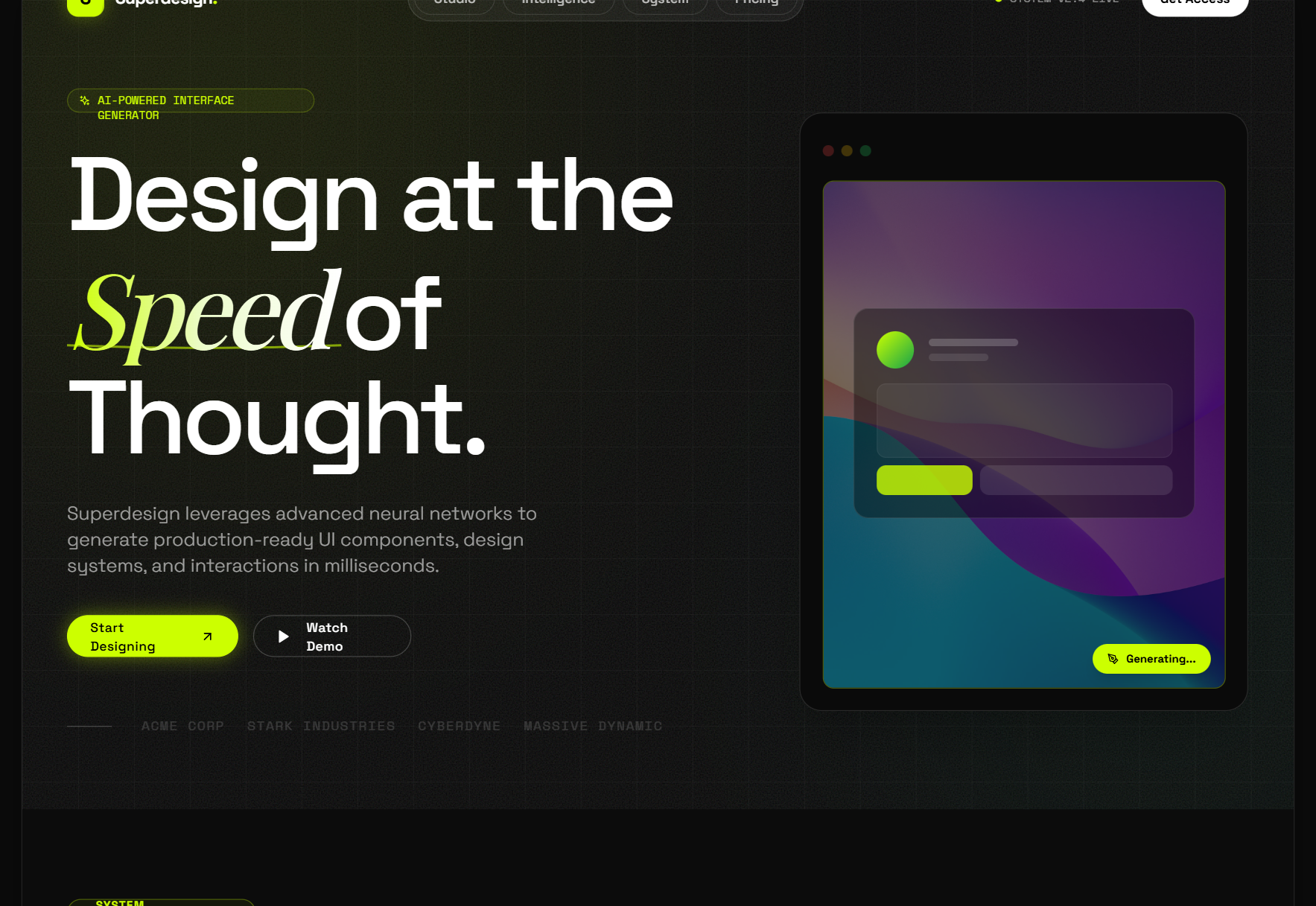
If you came here to actually design in Cursor, the short answer is the Superdesign skill: a one-line install (npx skills add superdesigndev/superdesign-skill) that lives inside Cursor or Claude Code. You drive it with /superdesign in plain English, it reproduces your current UI, then forks several directions at once on an infinite canvas, the exact front half Cursor's Design Mode skips. No new app, no Figma handoff, real React and Tailwind back out.

Does Cursor have a design mode?
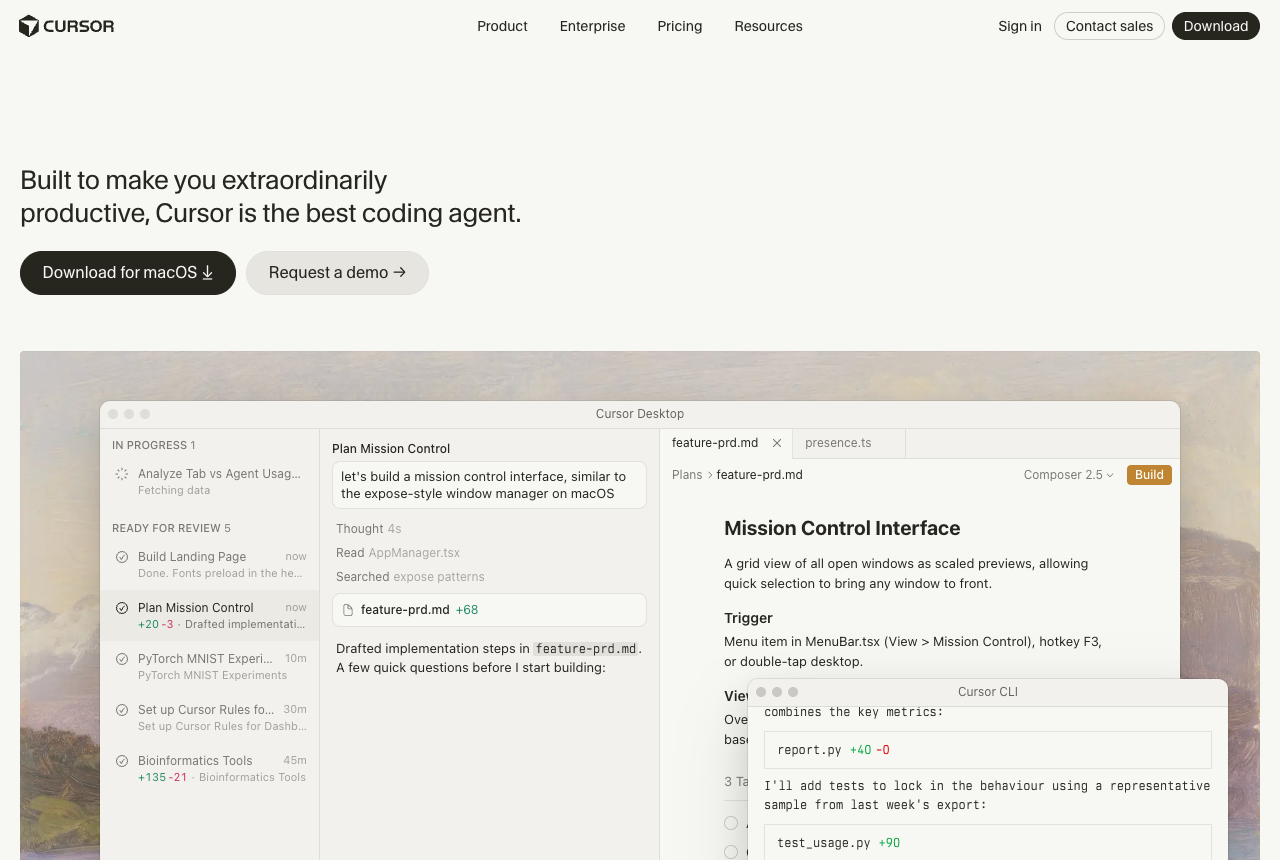
Yes. Cursor shipped Design Mode (a visual editor in its built-in browser) in late 2025, and Cursor 3.7 in June 2026 added point/draw/talk plus a persistent voice queue and multi-select. You open your running app inside Cursor, click an element, describe a change in plain language or with voice, and the agent writes the change back into your real code. It is a genuinely tight edit-and-see loop, and developers have been enthusiastic about it.
The important nuance: Design Mode edits what already exists. As dMaya put it in their breakdown, "it is an iteration tool, not a generation tool." You cannot ask it for a screen from scratch, explore five layout directions side by side, or get visual approval before any code exists. It operates on a UI you have already built and shipped to a dev server.
Is Cursor a design tool or a code editor?
Cursor is a code editor with an AI coding agent, plus a visual editing layer on top. It is not a design tool in the way Figma or a dedicated design agent is. There is no infinite canvas to think on, no parallel variations, and no pre-code approval loop. It covers the build phase brilliantly and leaves the design phase to you or another tool.
This matters because most "Cursor for design" hype quietly skips it. Real design work has a front half: explore the problem, sketch several directions, pick one, get sign-off, then build. Cursor starts at "then build." If you already know exactly what you want and just need to nudge a live UI, that is great. If you are figuring out what the UI should be, Design Mode has nothing for you yet, because there is no code to edit. If that is where you are, a written brief gets you further than an empty prompt box. Our UI design prompts are grouped by screen type, from dashboards to pricing to onboarding, and each one already names the layout and the states, so your first generated screen is worth reacting to.
What can't Cursor Design Mode do? (the honest cons)
Design Mode is a real step forward for developer UI iteration, and the cons below are not a hit piece. They are the documented friction points that decide whether it fits your workflow. Each is linked to its source.
| Limitation | What it means | Source |
|---|---|---|
| No design phase | Edits existing running code only; no from-scratch generation, multi-screen exploration, parallel variations, or pre-code approval | dMaya |
| Undo is unreliable | After an agent Apply, Cmd+Z does not reliably work. Git is effectively your only undo | Digital Applied |
| Design-system drift | Agents emit raw hex and pixel values and inline styles instead of tokens, causing silent visual drift | Digital Applied |
| Setup barrier | Needs a cloned repo, installed deps, env vars, and a dev server running cleanly to even open Design Mode | Builder.io |
| Pricing baggage | Usage-based Pro billing blindsided users in mid-2025; some upgrade to higher tiers to use these features comfortably | TechCrunch |
Why the missing undo scares non-engineers
Once the agent applies a visual change to your code, standard Cmd+Z is unreliable, so Git becomes the real undo. As Digital Applied puts it, "once a change lands, it is effectively permanent until you revert it through Git." For an engineer who lives in Git, that is a shrug. For a designer used to instant, infinite Cmd+Z, it is a dealbreaker. Cursor's own community has long flagged undo as rougher than expected, noting Cmd+Z does not group changes the way it does elsewhere. In a fast voice-driven editing session, the lack of a safe step-back is exactly where confidence drains away.
Does Cursor respect my design system?
Not automatically, and the mechanism is well documented. Digital Applied notes that agents driving visual edits "often output raw CSS values, hex codes, px literals, instead of the design-system tokens your components are supposed to reference," and can spin up a new element with inline styles "with no error message to catch it." The faster you edit blind, the faster that drift piles up, and if a coherent design system matters to you, that is the cost. The deeper reason most agents drift (they start with no real context of your product) is its own argument, see our best AI UI generator breakdown. The Superdesign skill closes that gap by reading your codebase and writing a design-system file before it edits anything.
Onlook vs Cursor vs Superdesign: what's actually different?
They solve different halves of the problem. Onlook and Cursor both edit real code in place. The Superdesign skill adds the design phase that comes before that. Here is the honest split.
| Cursor Design Mode | Onlook | Superdesign skill | |
|---|---|---|---|
| Primary job | Edit a running app's UI in the IDE | Visually edit a React codebase on a canvas | Add a design phase to your coding agent |
| From-scratch generation | No (edits existing only) | Limited | Yes (generates + explores) |
| Parallel variations | No | No | Yes (several at once on a canvas) |
| Multi-page flows | No | Per-screen | Yes (full flows) |
| Reads your design system first | No (drifts off tokens) | Partial | Yes (reads codebase + design system) |
| Setup to start | Repo + deps + env + dev server | Repo + local dev | Invoke /superdesign from your agent |
| Pricing | Usage-based, baggage | Open source / paid cloud | Flat $20/mo, free tier |
Onlook brands itself "the Cursor for designers," an open-source visual editor for React apps. It is a real option if you want to edit existing code on a canvas. But like Cursor's Design Mode, it operates on code that already exists. Neither is built for the from-scratch, multi-variation exploration that the design phase actually needs. That parallel, fork-many-directions-at-once motion is the part Cursor genuinely cannot do, and it is what the clip below shows.
For a wider survey of generation tools, see our best AI UI generator roundup.
How do you add a real design phase to Cursor or Claude Code?
Use the Superdesign skill from inside Cursor or Claude Code. It is the missing front half: instead of editing blind, it reads your existing codebase and design system first, opens an infinite canvas, explores several variations in parallel, designs whole multi-page flows, then hands clean code back to your agent. You do not leave your editor, you add the phase Cursor skips.
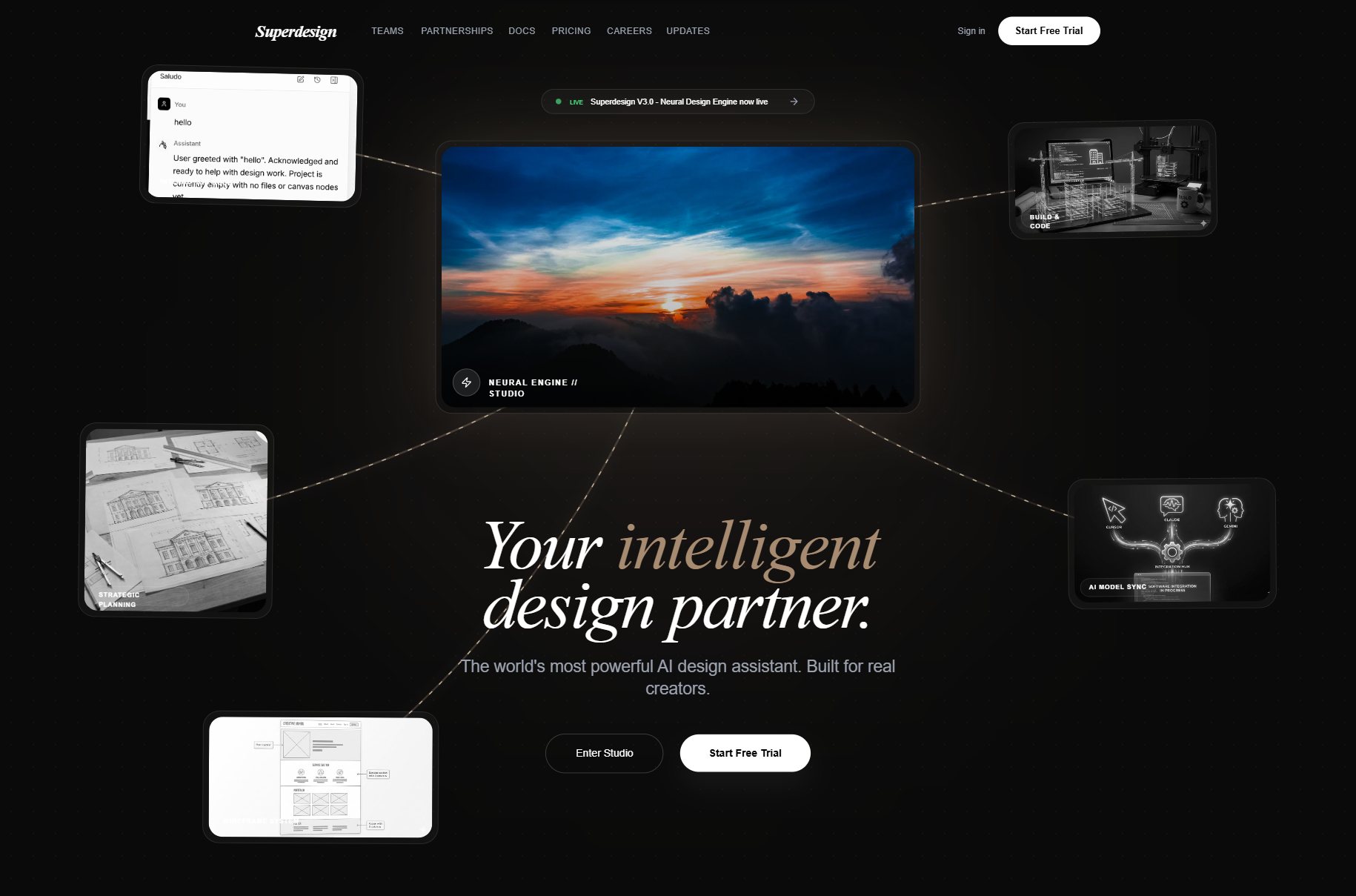
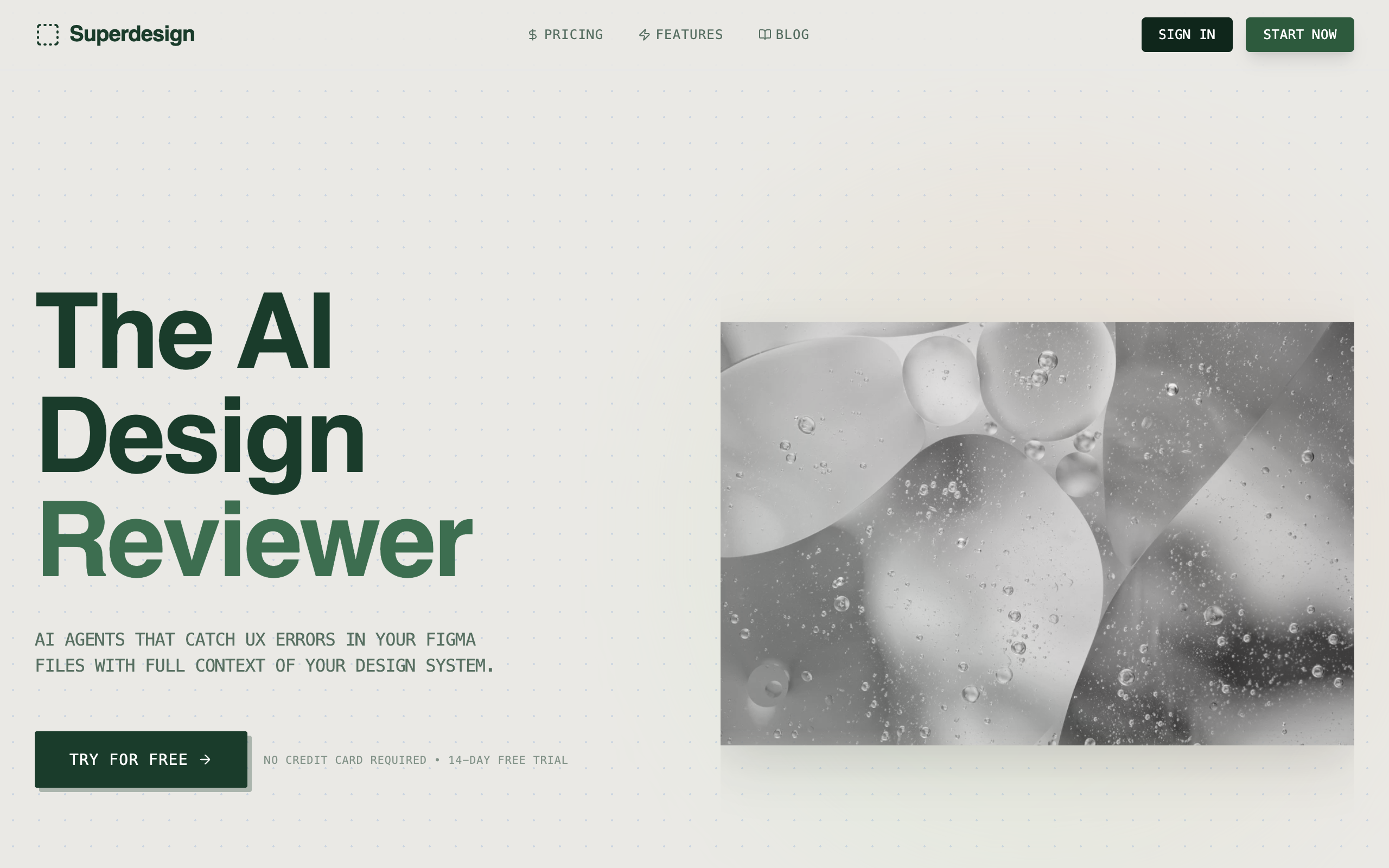
Superdesign is an AI product design agent (by Jason Zhou, AI Jason). You can use it two ways: directly in the web app on the canvas, or as a skill your coding agent invokes. The skill is the developer-native path, and it is agent-agnostic, so it works the same whether you run Cursor or Claude Code.
Here is the concrete loop, end to end:
- It learns your project first. On an existing codebase, the skill investigates your current UI and creates a
superdesign/folder with a design-system file (full context of your existing design system and product) plus HTML replicas of your real pages. That context is what keeps it from drifting off your tokens the way blind editing does. - It opens the canvas and explores in parallel. The Superdesign canvas opens in your browser and shows several design variations at once. You keep prompting to refine, the way an experienced designer actually explores options, not one-shot-and-pray.
- It designs whole flows, and they are functional. Output is clickable multi-page flows, not a static mockup you have to interpret.
- It hands back to code cleanly. Pick a page, use "Copy design prompt" to paste full design context into your agent, or have the agent fetch the design and plan the implementation. Design and build stay in one place.
That is the part Design Mode cannot do, slotted into the editor you already run. If wireframing is your starting point, the same canvas covers that too, see our AI wireframe generator guide.
What does the Superdesign skill look like in practice?
The walkthrough below is the real setup and run: install the CLI, add the skill to your agent, then drive it with the /superdesign slash command plus a plain-English request like "redesign the homepage and add a book-a-demo section." Note that Cursor needs one extra step compared to Claude Code (add a superdesign command in Settings and paste the skill's instructions).
If you want to skip the blank-canvas paralysis, the prompt library is a strong starting point. It is a catalog of prompts that produce solid designs, and a popular draw in its own right. Grab one, point Superdesign at your codebase, and iterate from there.
How much does this cost compared to Cursor?
Cursor for design inherits Cursor's usage-based billing, and the mid-2025 shift to usage-based Pro billing blindsided users who burned through included usage in a handful of prompts. The takeaway is not "Cursor is overpriced," it is that design work means a lot of prompts, and watching a meter while you explore is the wrong tax to pay. Superdesign is flat at $20/mo with a free tier, so exploration stays predictable. The fuller credit-burn-vs-flat argument lives in our best AI UI generator breakdown.
Should you use Cursor Design Mode, the Superdesign skill, or both?
Use both, for different halves of the work. Reach for Cursor Design Mode when you have a live app and want a fast, in-place tweak to existing UI. Reach for the Superdesign skill when you are starting something new, exploring directions, or designing a multi-page flow, anything where there is no code to edit yet or where staying on-system matters. They are complementary, not competitors.
If you are weighing the broader landscape, these comparisons go deeper: v0 vs Superdesign, Lovable vs Superdesign, Bolt vs Superdesign, and the 2026 AI design stack. For where this whole shift is heading, see what is vibe design.
The bottom line
Cursor for design is real but partial. Design Mode is a genuinely good edit-and-see loop for developers iterating on a running app, and it is fair to credit it for pushing the category forward. What it does not have is a design phase: no generation, no parallel exploration, no pre-code approval, unreliable undo, and measurable design-system drift. The fix is not to leave your editor. It is to add the missing front half with the Superdesign skill, which reads your codebase and design system first, explores on a canvas, and hands clean code back to your agent.