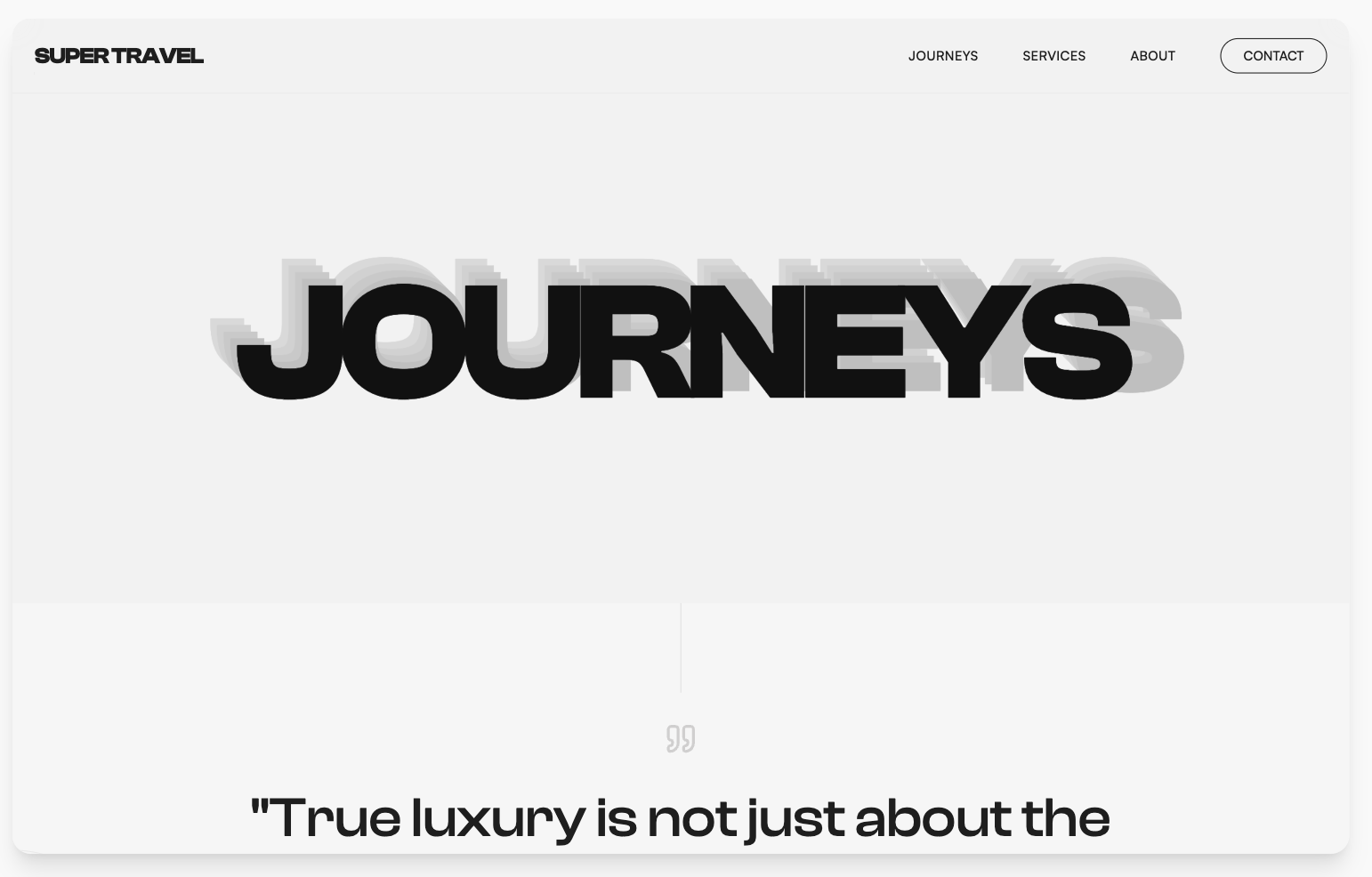
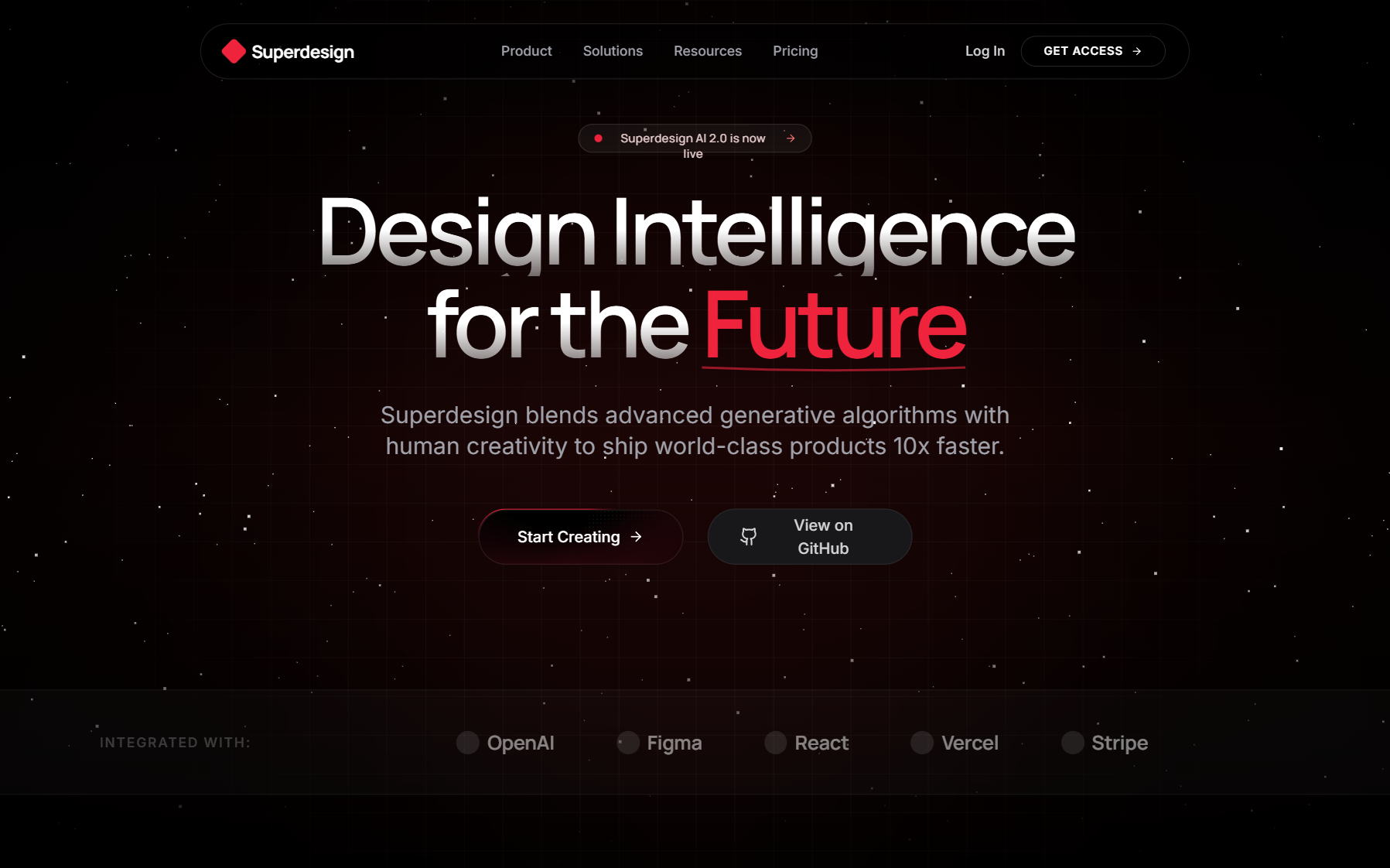
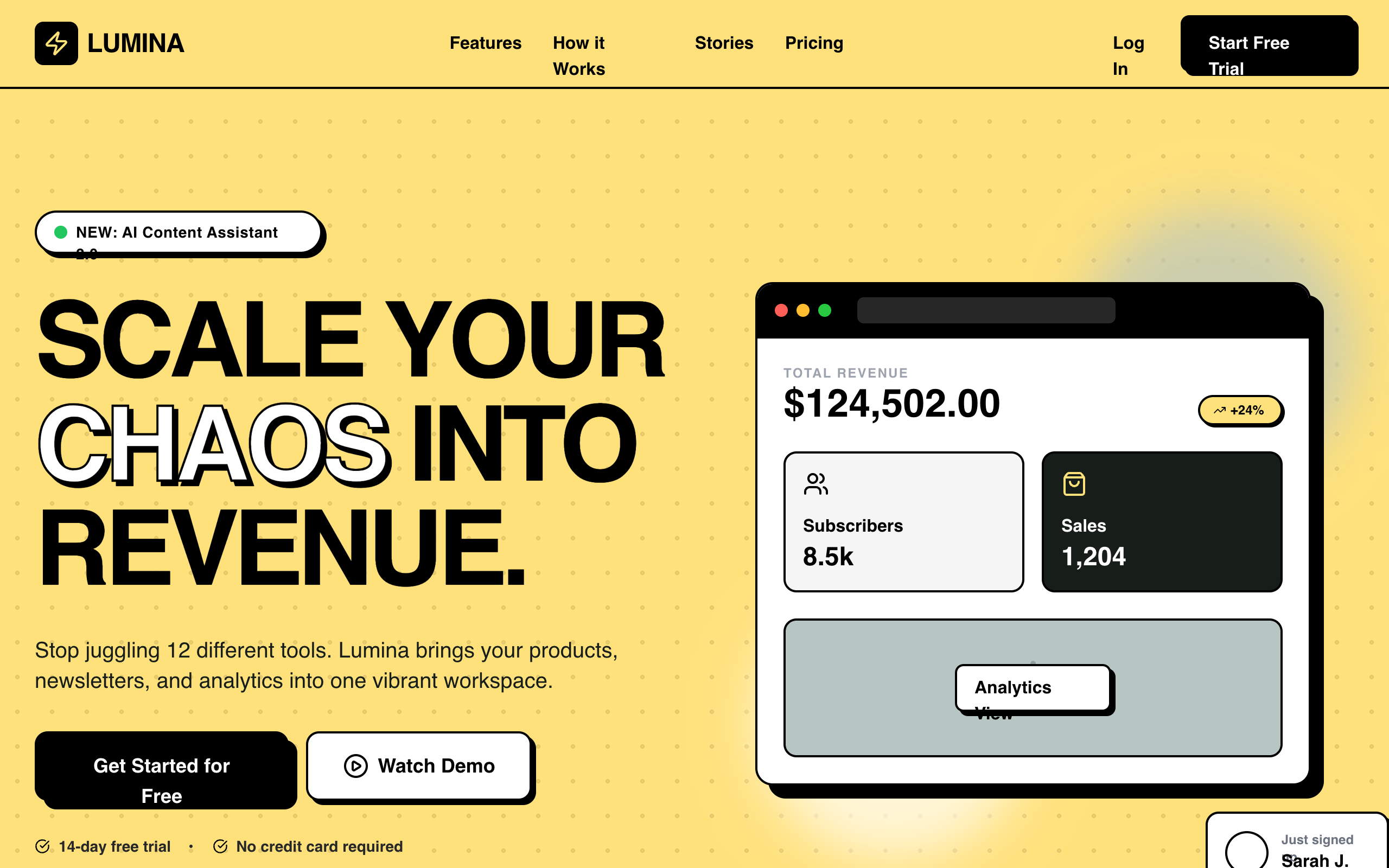
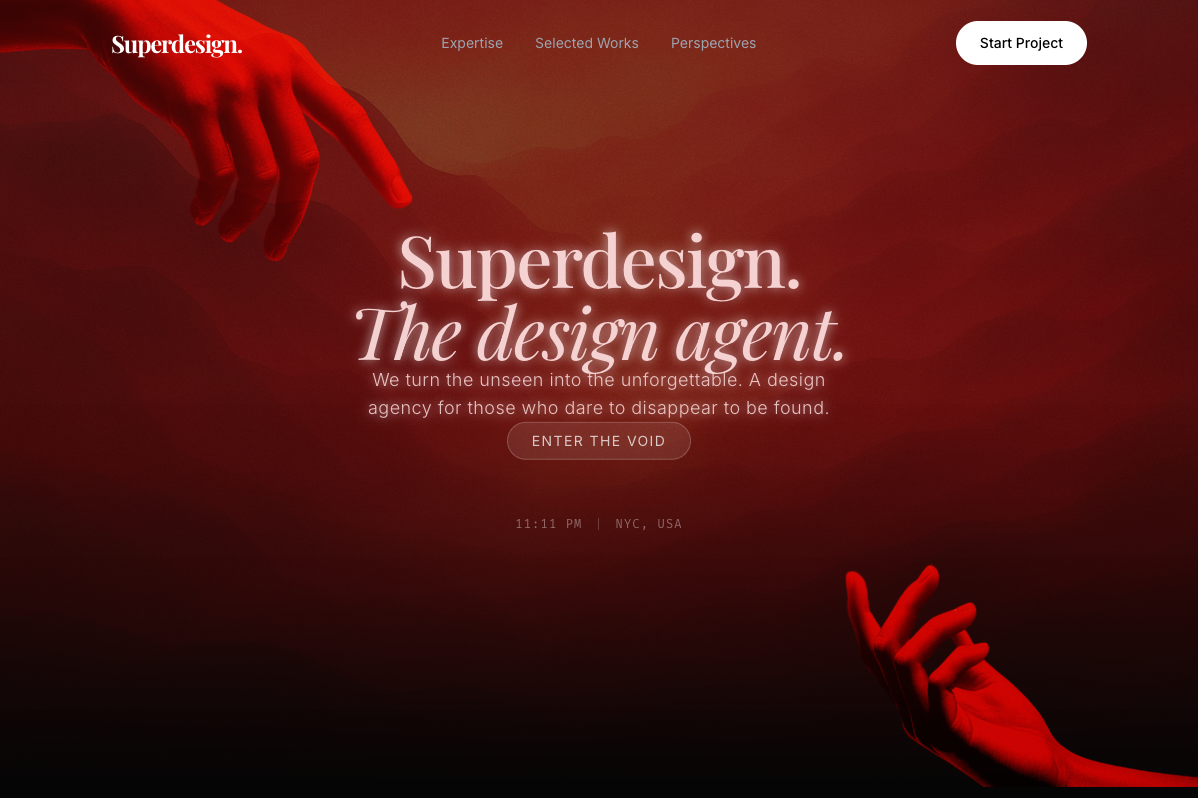
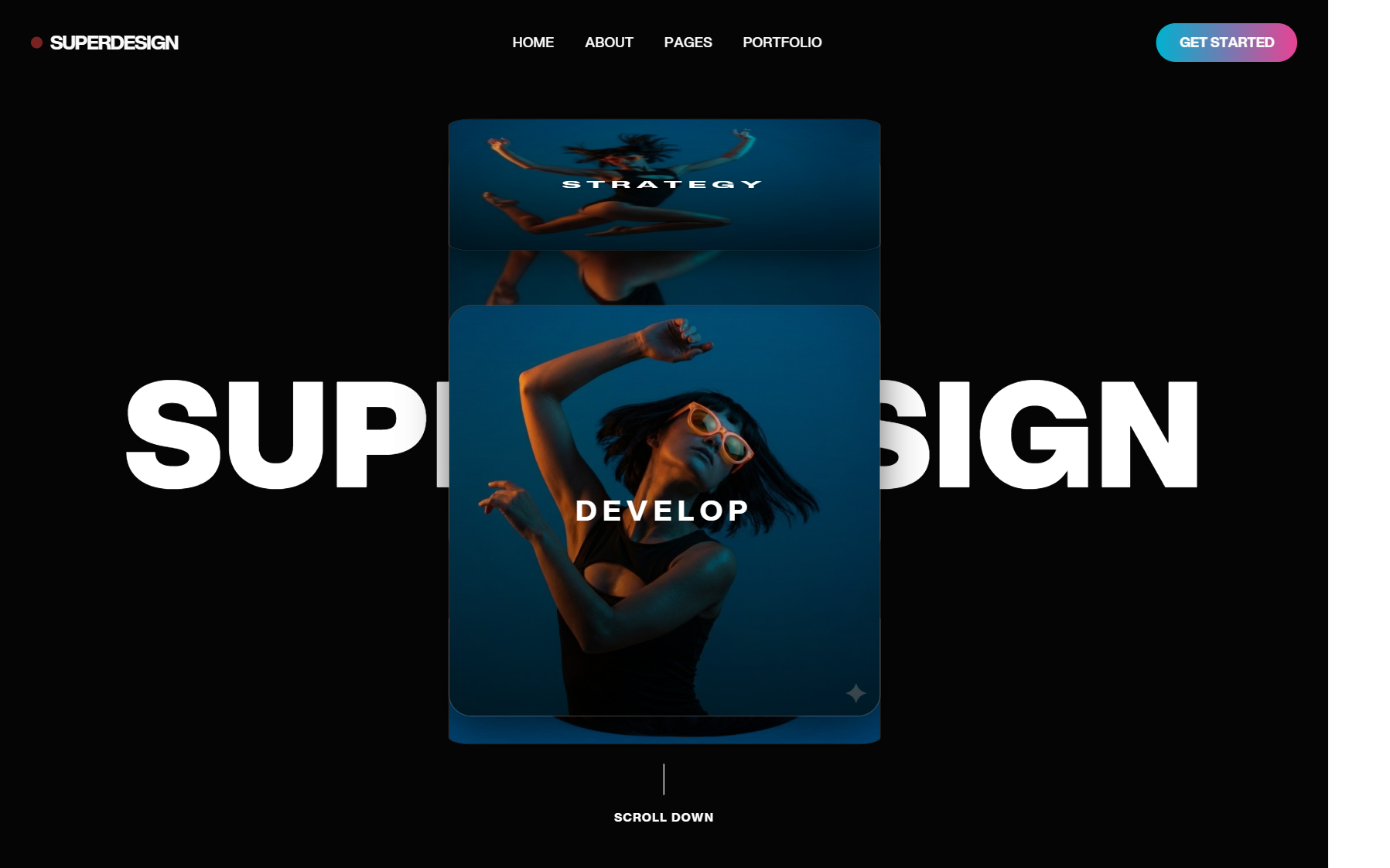
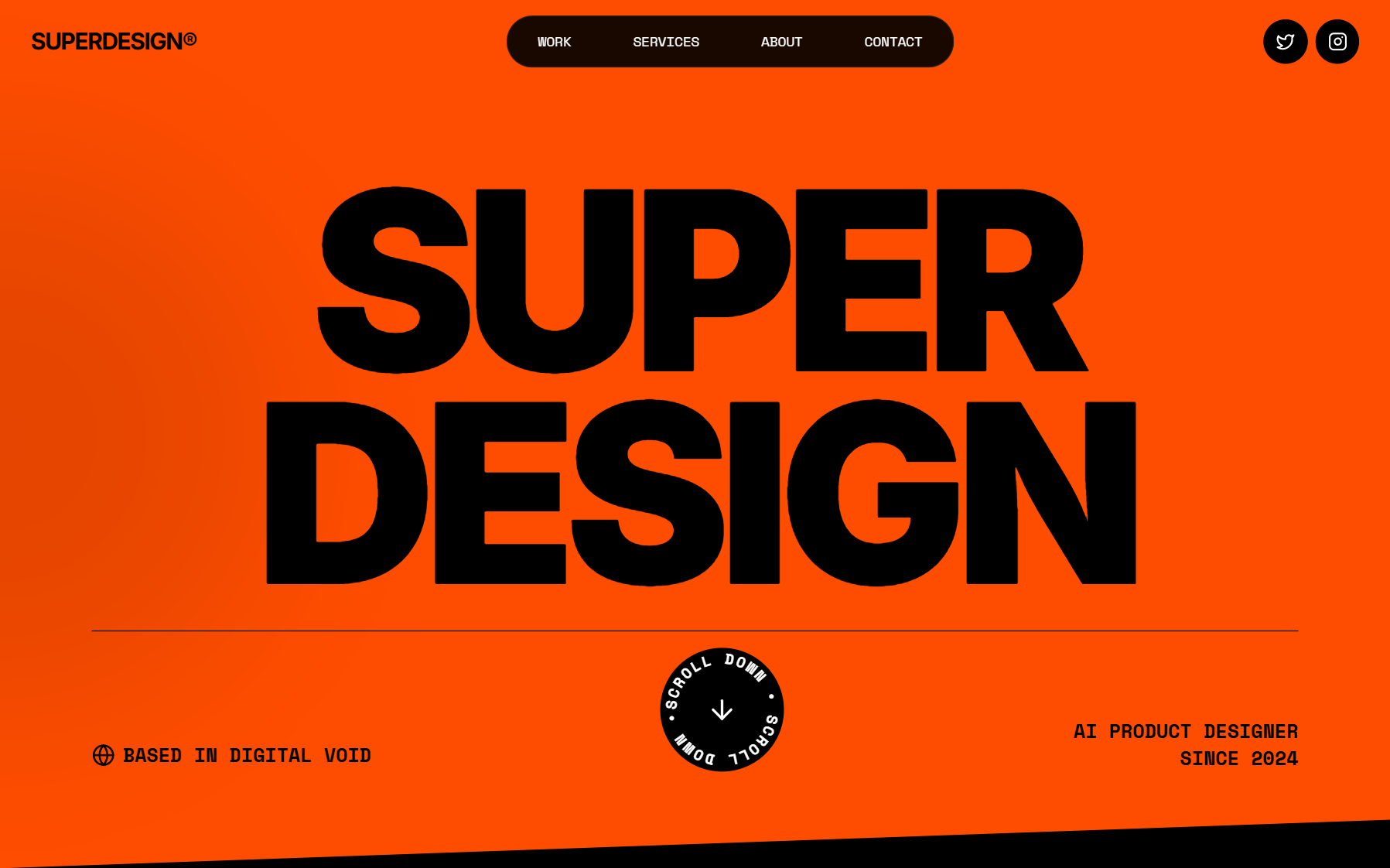
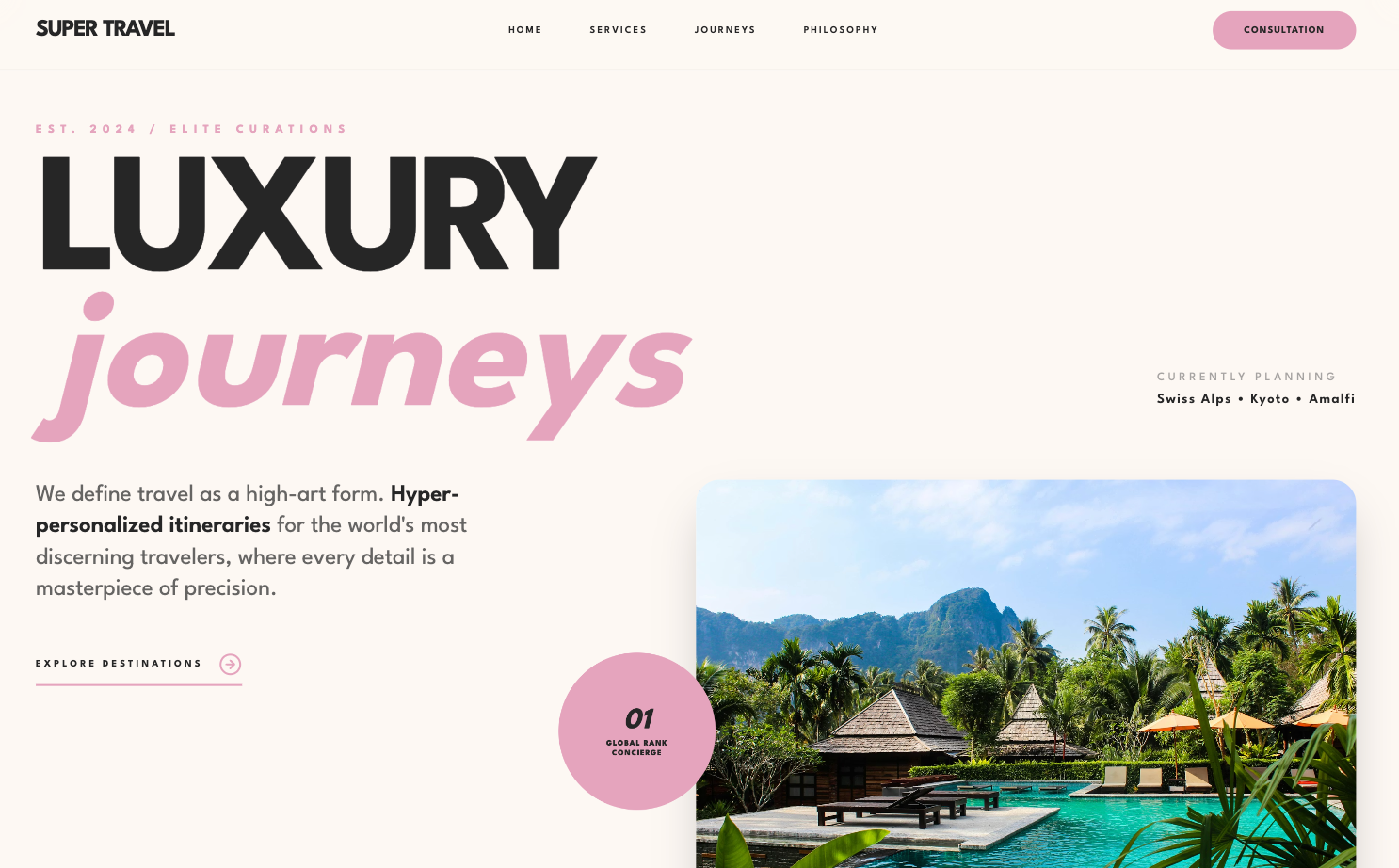
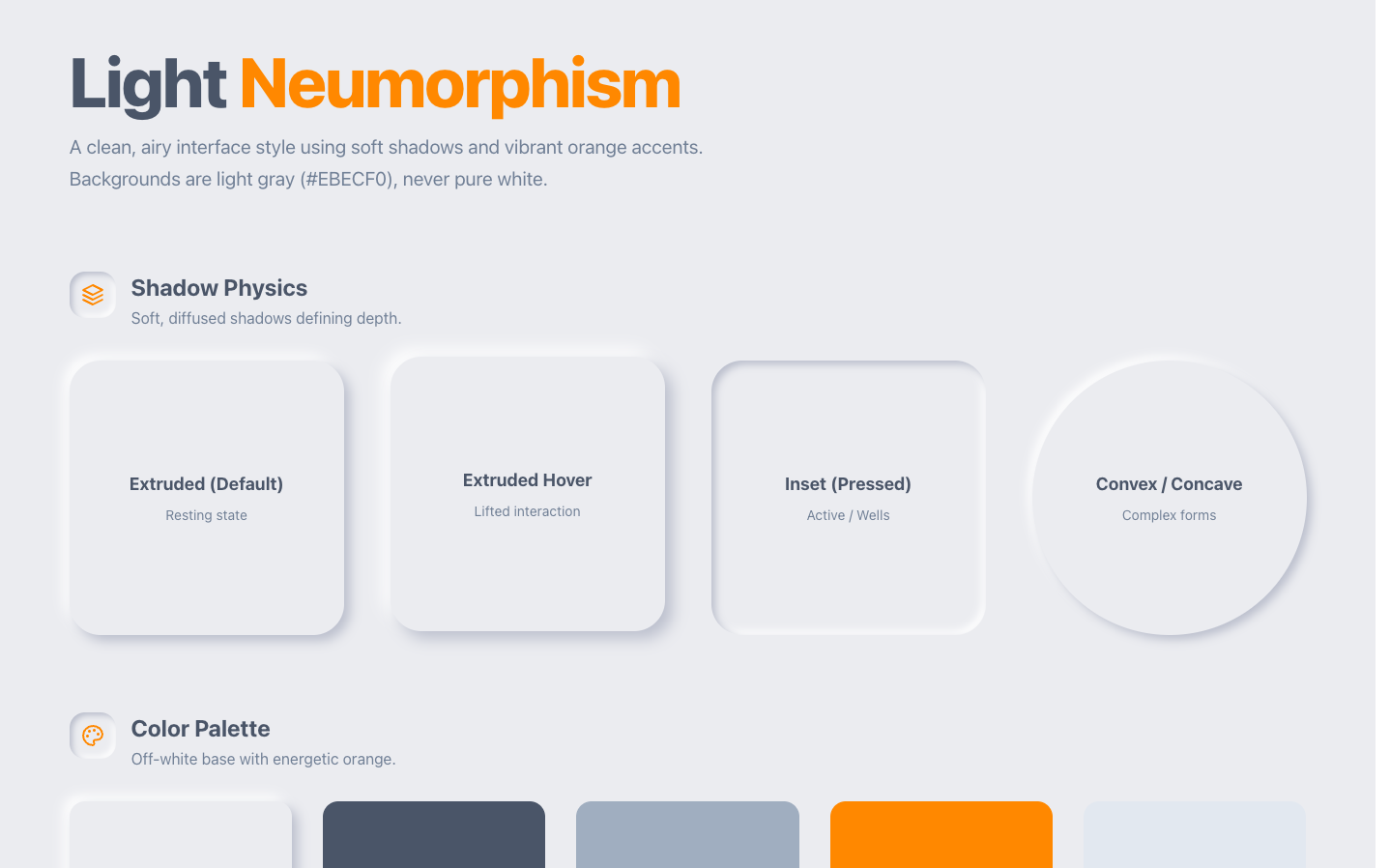
TL;DR: A design prompt library is a collection of reusable, copy-paste prompts that tell an AI exactly what interface to build: the screen, the layout, the components, the visual system, and the constraints. Below is a categorized set you can steal today (dashboard, landing page, mobile app, auth, hero, pricing, settings, email), plus the one framework that separates prompts that produce shippable UI from prompts that produce mush: start with a strong default, then layer constraints. Copy a prompt, swap the brackets, paste it into your design agent, iterate. If you want the version with a live preview on every prompt, that lives in the Superdesign prompt library.
The single biggest takeaway: the quality of your interface is set almost entirely at the prompt, before the AI renders a single pixel. A vague prompt ("design a dashboard") gives you a generic template. A prompt that names the screen, the exact components, and three hard constraints gives you something you'd actually ship. This page is both the library and the method to write your own.
What is a design prompt library (and why keep one)
A design prompt is a natural-language brief that an AI design agent turns into a real interface: mockup, component, or full screen. A design prompt library is a saved, reusable collection of those briefs, organized so you can grab the right one in seconds instead of rewriting "make me a settings page" for the hundredth time.
Two reasons a library beats one-off prompting:
- Consistency. A saved prompt encodes your defaults once (spacing scale, type ramp, component patterns). Every screen you generate inherits the same taste instead of drifting.
- Speed. The hard thinking, what makes a good dashboard versus a cluttered one, is done inside the prompt. You reuse the thinking, not just the words.
This page is the practical hub: it gives you both categorized prompts and the method for writing your own. For a broader look at prompting patterns across AI design tools, see AI Design Prompts for 2026. For the full browsable collection with a live preview on every entry, go to the Superdesign library.
The one framework: default, then constraint
Most prompt guides hand you a six-letter acronym and a checklist of "elements to include." That is fine, but it misses the move that actually matters. Here it is in one line:
Method box: Default → Constraint 1. State a strong default. Name the screen and the design language in one confident sentence, as if briefing a senior designer who already has good taste. ("A clean analytics dashboard in a modern SaaS style.") 2. Layer 3 to 6 hard constraints. Each constraint removes a decision the AI would otherwise guess: exact sections, component patterns by name, the visual system (color, type, spacing, density), platform, and one thing to avoid. 3. Iterate with deltas. Never re-describe the whole screen. Add one change: "Same, but denser rows and a sticky filter bar."
Why "default first" works: an AI design agent has seen millions of interfaces. If you give it a clean, confident default, it fills the gaps with competent, on-pattern choices. Your constraints then steer those choices toward your product. If you open with a pile of contradictory adjectives and no default, the model has nothing to anchor to and reverts to the blandest safe template it knows.
Name your patterns. The fastest quality jump in any prompt is replacing vague structure with named UI patterns: "bottom tab navigation," "card grid," "master-detail split," "sticky table header," "floating action button," "stepper." The AI knows exactly what those are. "Make it easy to navigate" it has to guess.
Good prompt vs bad prompt
Here is the same intent written two ways.
Bad (vague, no default, no constraints):
Design a nice dashboard for my app. Make it modern and easy to use with some charts and good colors.
You will get: a generic three-card-plus-line-chart template, random accent color, no information hierarchy, nothing you can ship.
Good (default, then constraints):
A clean analytics dashboard for a B2B SaaS product, modern minimal style. Layout: left sidebar nav (Overview, Reports, Settings), top bar with workspace switcher and search. Main area is a 4-up KPI row (label, big number, delta chip with up/down color), then a full-width line chart with a range selector, then a data table with a sticky header, sortable columns, and row hover. Visual system: neutral gray-50 background, one indigo accent, 8px spacing scale, generous whitespace, subtle 1px borders instead of heavy shadows. Density: comfortable, not cramped. Avoid: gradients, glassmorphism, and decorative illustrations.
Same idea. The second one produces something a real product team would iterate on, because every decision the first prompt left to chance is now pinned down.
The categorized prompt library
Below are copy-paste prompts by category. Each follows the default-then-constraint structure. Swap anything in [brackets] for your product. Paste into any AI design agent, Superdesign, a Claude Code / Cursor design skill, or your tool of choice, then iterate with deltas.
Tip: keep the "Avoid" line. Telling the AI what not to do is often higher-leverage than another adjective, because it removes the clichés (unwanted gradients, stock-photo heroes, emoji-as-icons) before they appear.
1. Dashboard / analytics
A clean analytics dashboard for a [B2B SaaS] product, modern minimal style. Layout: collapsible left sidebar (Overview, [Reports], [Customers], Settings), top bar with workspace switcher, global search, and avatar menu. Main area: a 4-up KPI row (each card = label, large value, and a delta chip colored green up / red down), then a full-width time-series chart with a 7d/30d/90d range toggle, then a data table with a sticky header, sortable columns, pagination, and row hover. Visual system: neutral background, single [indigo] accent, 8px spacing scale, 1px borders over heavy shadows, comfortable density. Avoid gradients, glassmorphism, and decorative illustrations.
2. Landing page
A high-converting landing page for [product: a tool that does X for Y]. Sections in order: sticky nav (logo, 3 links, one primary CTA button), hero (bold headline, one-sentence subhead, primary + secondary CTA, and a product screenshot on the right), a logo strip ("trusted by"), a 3-column feature row with icons, a "how it works" 3-step section, one testimonial block, a pricing preview with 3 tiers, an FAQ accordion, and a footer. Visual system: [light] theme, [one accent color], strong type hierarchy (large confident headings, readable body), generous vertical rhythm. Tone: [confident and clear, not hypey]. Avoid stock-photo heroes, meaningless 3D blobs, and walls of text.
Building a full landing page and want section-by-section prompts instead of one big brief? We keep a dedicated set of landing-page prompts (hero, feature row, pricing, FAQ, CTA) in the Superdesign library. Grab one section prompt at a time, swap the brackets, and stack them into a page you can ship.
3. Mobile app screen
A [fitness tracking] mobile app home screen, iOS, native feel. Layout: large greeting header with the user's name and today's date, a primary progress ring showing [daily goal] with the number centered, a horizontal scroll of [quick-action] chips, then a vertical card list of [today's activities] (each card: icon, title, subtitle, trailing value), and a bottom tab bar (Home, [Activity], [Stats], Profile) with the active tab highlighted. Visual system: [dark] theme, one vibrant accent, rounded-2xl cards, comfortable touch targets (min 44px), SF-style typography. Avoid tiny text, cramped spacing, and desktop-style dense tables.
4. Auth / onboarding
A sign-up screen and a 3-step onboarding flow for [product]. Sign-up: centered card on a subtle [gradient-free] background, email + password fields with inline validation, a primary "Create account" button, "or continue with [Google]" secondary button, and a small "already have an account? Sign in" link. Onboarding: a top progress stepper (1 of 3), each step is one focused question with large friendly copy and a single primary action, and a "skip for now" link. Visual system: warm, human, plenty of whitespace, [one accent], no clutter. Avoid asking for too much at once, tiny form fields, and legal-heavy first screens.
5. Hero section
A hero section for [product], the first thing visitors see. Left column: an eyebrow label, a bold two-line headline that states the outcome (not the feature), a one-sentence subhead, a primary CTA and a secondary "see how it works" link, and a small trust line ("[no credit card] · free to start"). Right column: a clean product screenshot in a subtle browser/device frame with a soft shadow. Visual system: [light] theme, one accent, big confident type, lots of breathing room. Avoid vague headlines ("Empower your workflow"), stock photos, and more than two CTAs.
6. Pricing page
A pricing page with 3 tiers for [product]. Layout: short heading and a monthly/annual toggle (annual shows a "save [20%]" badge), then 3 cards side by side (Starter, Pro, Team). Middle card is highlighted as "Most popular" with a colored border and a badge. Each card: plan name, price with billing period, one-line who-it's-for, a primary CTA, and a checklist of included features with checkmark icons (grayed-out items for what's not included). Below: a feature-comparison table and an FAQ accordion. Visual system: clean, trustworthy, one accent, clear hierarchy so the eye lands on the recommended plan. Avoid dark patterns, hidden pricing, and more than 3 tiers.
7. Settings page
A settings page for [product], master-detail layout. Left: a vertical settings nav (Profile, Account, [Notifications], [Billing], Security, Team). Right: the active section as a series of labeled setting rows, each row = title, helper text, and the control on the right (toggle, select, or button). Group related settings into cards with section headers. Include a sticky "unsaved changes" save bar at the bottom when edits are pending, and destructive actions (delete account) in a clearly separated red "Danger zone" card at the end. Visual system: calm, neutral, readable, comfortable row height. Avoid cramming everything on one endless scroll with no grouping.
8. Transactional email
A [welcome / email-verification] transactional email for [product]. Single-column, max ~600px, works in dark and light mail clients. Structure: small logo at top, a clear headline, one short paragraph of context, one prominent primary button (the single action), a plain-text fallback link under it, and a simple footer (company, address, unsubscribe). Visual system: minimal, high-contrast, [one brand color] on the button only, system fonts, generous padding. Tone: warm and human, one sentence of personality. Avoid image-only emails, multiple competing CTAs, and tiny tap targets.
Want these with a live preview and one-click copy? Every prompt above exists in the Superdesign library as a browsable entry: preview the result, tweak the brackets, and copy it straight into your agent. The library currently holds 1,000+ prompts across these categories.
Building your own library: a repeatable recipe
You do not need our library to have a good one. Here is how to grow yours:
- Save the winners. Any time a prompt produces a screen you'd ship, save the exact prompt, not a cleaned-up version. The magic is usually in a constraint you'd forget.
- Template the brackets. Replace product-specific words with
[brackets]so the prompt is reusable across projects. - Group by screen, not by style. "Dashboard," "pricing," "auth" are how you'll actually search for a prompt when you need it. Style is a constraint inside the prompt, not the top-level folder.
- Keep an "Avoid" bank. Collect the clichés your tools reach for (gradients, glassmorphism, stock heroes) and paste the relevant ones into new prompts.
- Store the delta prompts too. The follow-up "same, but denser rows" is reusable. Those small refinements are where most of the quality lives.
FAQ
What is a design prompt library? A saved, reusable collection of natural-language prompts, each describing a specific interface (dashboard, landing page, settings, and so on) so an AI design tool can generate it. You keep the good prompts and reuse them instead of rewriting the same brief every time.
What makes a good UI design prompt? Start with one confident default sentence that names the screen and the design language, then layer 3 to 6 hard constraints: exact sections, UI patterns by name, the visual system (color, type, spacing, density), the platform, and one thing to avoid. Specificity beats adjectives.
Where can I find copy-paste UI design prompts? The categorized set on this page is free to copy. For a browsable version with a live preview on every prompt, use the Superdesign library. For broader prompt strategy across tools, see AI Design Prompts for 2026.
How long should a design prompt be? Long enough to pin down the screen, the sections, the components, and the visual system, usually 3 to 7 sentences. If you are past ~200 words you are probably over-specifying. Add the rest through iteration deltas.
Do these prompts work in Claude Code or Cursor? Yes. They are plain natural language, so they work in any AI design agent, including a Claude Code or Cursor design skill. See our Claude Code design prompts post for the coding-agent-specific setup.
Should I organize my library by style or by screen? By screen. You search by what you're building ("I need a pricing page"), not by aesthetic. Style is a constraint you set inside each prompt.
The bottom line
A design prompt library turns "designing a screen" into "picking the right prompt and swapping the brackets." The prompts above are the starting kit; the default-then-constraint method is how you write infinitely more. Copy what's useful, keep what works, and let the library compound.
Superdesign is an AI product design agent. Describe the interface you want in plain language and it generates UI mockups, components, and full designs on an infinite canvas, then iterates with you. Two ways in: prompt it on the web app, or drive it from your coding agent with the Superdesign skill for Cursor and Claude Code. It's free to start. (Note: this is our current product, not the old open-source IDE extension.) Explore the prompt library or start at superdesign.dev.