If you're a developer hunting for a Figma alternative in 2026, the honest answer is that you probably don't want another design tool at all. You want a tool that hands you production code, React and Tailwind you can ship, instead of static frames you still have to rebuild by hand. That single difference splits the whole field, so this page ranks alternatives by what comes out the other end, not by how nice the canvas looks.
Quick map of the landscape: traditional design tools (Penpot, Sketch, Framer) replace Figma's canvas but still leave you implementing the design. Figma-to-code plugins (Anima, Locofy, Builder.io) convert a finished Figma frame to code, which keeps Figma in your workflow as an extra step. And a newer category, AI design agents like Superdesign, skips the drawing entirely: instead of redrawing your product in a canvas, it grabs your real UI and gives you clean code directly. Most "best Figma alternative" lists you'll find are published by one of these vendors and rank their own product first. This one names where Figma still wins and tells you when to just stay put.
The unlock most lists miss: the reason developers open Figma at all is usually to mock up something they already see in a browser, so they screenshot a live page, paste it into a frame, and redraw it. A tool that captures that live component straight into clean Tailwind deletes the whole detour. That is the angle this page leads with, more below.

What is the best Figma alternative for developers in 2026?
For developers who want code out rather than frames in, the best Figma alternative depends on where you start. If you must design in Figma first, a Figma-to-code plugin like Anima or Locofy converts your frames to React. If you're building greenfield, an AI app builder like v0, Bolt, or Lovable prototypes fast. And if you want to skip the Figma handoff entirely, an IDE-native design agent like Superdesign reads your existing codebase and gives you React and Tailwind without ever opening a canvas.
There is no single "Figma killer" because Figma does several jobs at once: collaborative visual design, design files, prototyping, and developer handoff. The right alternative is the one matched to the specific job you're trying to leave behind. The table below splits the field into the three camps so you can find your row first, then read the section that fits.
How do you skip the screenshot-into-Figma habit entirely?
You capture the live component instead of redrawing it. Superdesign's free Chrome "Component Grab" lets you grab any live web element, your own production UI or any site you admire, and it turns the messy DOM into clean Tailwind pixel perfectly, ready to remix on the canvas or paste straight into Claude Code or Cursor. That single move kills the most common reason a developer opens Figma at all: screenshotting a real page into a frame just to mock something up.
Think about the usual loop. You see a card, a nav, a pricing block you like in the browser. You screenshot it, drop the image into Figma, and rebuild it shape by shape, then rebuild it again in code. Component Grab collapses that to one step: grab the thing, get Tailwind out, edit it as code. You are designing on reality instead of on a flat picture of reality, so the spacing, the states, and the structure are real from the first second rather than eyeballed. And when all you have is a static screenshot or a mockup image, the image to code tool does the same trick from a picture: editable UI and clean code out, no redrawing.
This is also why Superdesign sidesteps the chronic Figma headache of an out-of-sync component library. When your design source is a frame, it drifts from the shipped product the moment an engineer tweaks a class. When your design source is the live component itself, captured on demand, there is nothing to keep in sync. Component Grab is free forever, so you can try this without touching your Figma seat at all.
Can it clone a whole page or extract a site's style?
Yes, and it is the natural next step up from grabbing one component. Point Superdesign's context-aware agent at any live page and it extracts the styles, colors, and components, then lets you design on top of that real foundation instead of a blank canvas. The premise the founder keeps coming back to is that most AI design tools start from zero context of your real product, like onboarding a brand new designer on day one every single time, so the output never quite matches what you ship.
For a developer, that means you can pull your own product's look into the design surface and iterate variations that already fit, or borrow the structure of a reference site as a starting point, all without exporting, screenshotting, or rebuilding in a separate file. Because what comes out the other end is real React and Tailwind, not a frame, there is no handoff step where the design and the code drift apart.
What are the three types of Figma alternative?
There are three distinct categories, and confusing them is why most comparison lists are useless to developers. Traditional design tools give you a canvas. Figma-to-code tools convert a finished design to code. AI design agents generate code from a prompt with no canvas step at all. Each solves a different problem, and only the last two produce code you can actually ship.
| Category | Examples | What you get out | Reads your codebase? | Best for |
|---|---|---|---|---|
| Traditional design tools | Penpot, Sketch, Framer | Design files (handoff still needed) | No | Designers who want a Figma-style canvas |
| Figma-to-code plugins | Anima, Locofy, Builder.io | React/HTML from a finished frame | No (starts from the frame) | Teams who must design in Figma first |
| AI app builders | v0, Bolt, Lovable, Google Stitch | Generated app/components from a prompt | No (greenfield, browser-only) | Fast prototypes from scratch |
| AI design agents | Superdesign | React/Tailwind, from a prompt or a captured live component | Yes (grabs live UI, clones pages, reads your repo) | Developers who want to design on their real product, not a frame |
The key question almost no comparison asks: does the tool know what you've already built? Browser-only tools generate from a blank slate every time, so output clashes with your existing components and you spend the saved time reconciling it. We go deeper on this in the best AI UI generator for developers.
Why are developers leaving Figma in 2026?
Developers are leaving Figma for a few concrete reasons, not because the tool got worse at being Figma. The drivers cluster into pricing, friction, and fit. Figma is still excellent at collaborative visual design. It's just a poor fit for a developer whose end goal is shipped code.
- Seat-based pricing adds up. Figma bills per seat per role, and for a small team where the developer is also the designer, paying a Full seat to occasionally generate UI feels like overkill.
- The handoff gap is real. Even with Dev Mode, translating a Figma file into production code is manual and lossy. You eyeball spacing, rebuild components, and guess at states. The design and the code are two separate artifacts you keep in sync by hand.
- It has no idea what you've already built. Figma has zero awareness of your components, your Tailwind config, or your design tokens. Everything starts from scratch on the canvas, then gets re-implemented from scratch in code.
- The AI features are metered. Figma's own AI tool, Figma Make, runs on credits that users say deplete fast (more on that below), which makes iteration feel expensive in a tool you're already paying a seat for.
None of this means Figma is bad. It means a developer who just wants polished UI in their repo is paying for, and fighting through, a workflow built for design teams. If that's you, the alternatives below remove the steps you don't need.
Does Figma have a Dev Mode, and is it enough?
Yes, Figma has Dev Mode, and for inspecting a finished design it's genuinely good, but it is not a code-generation tool. Dev Mode shows measurements, exports assets, surfaces CSS values, and produces code snippets for a selected element. What it does not do is hand you a working, composable React component that fits your project. You still translate the design into your component structure, your state, and your conventions by hand.
That's the gap the Figma-to-code plugins and IDE-native agents try to close. Dev Mode tells you what the design looks like. It doesn't build the thing. If your bottleneck is "I have a Figma file and need it in code," a plugin like Anima or Locofy automates more of that step, and Superdesign's Figma to React tool turns a Figma design into working React UI you can keep iterating on. If your bottleneck is "I don't want to make the Figma file in the first place," that's where an AI design agent comes in.
Is Figma Make good enough to replace Figma for building real apps?
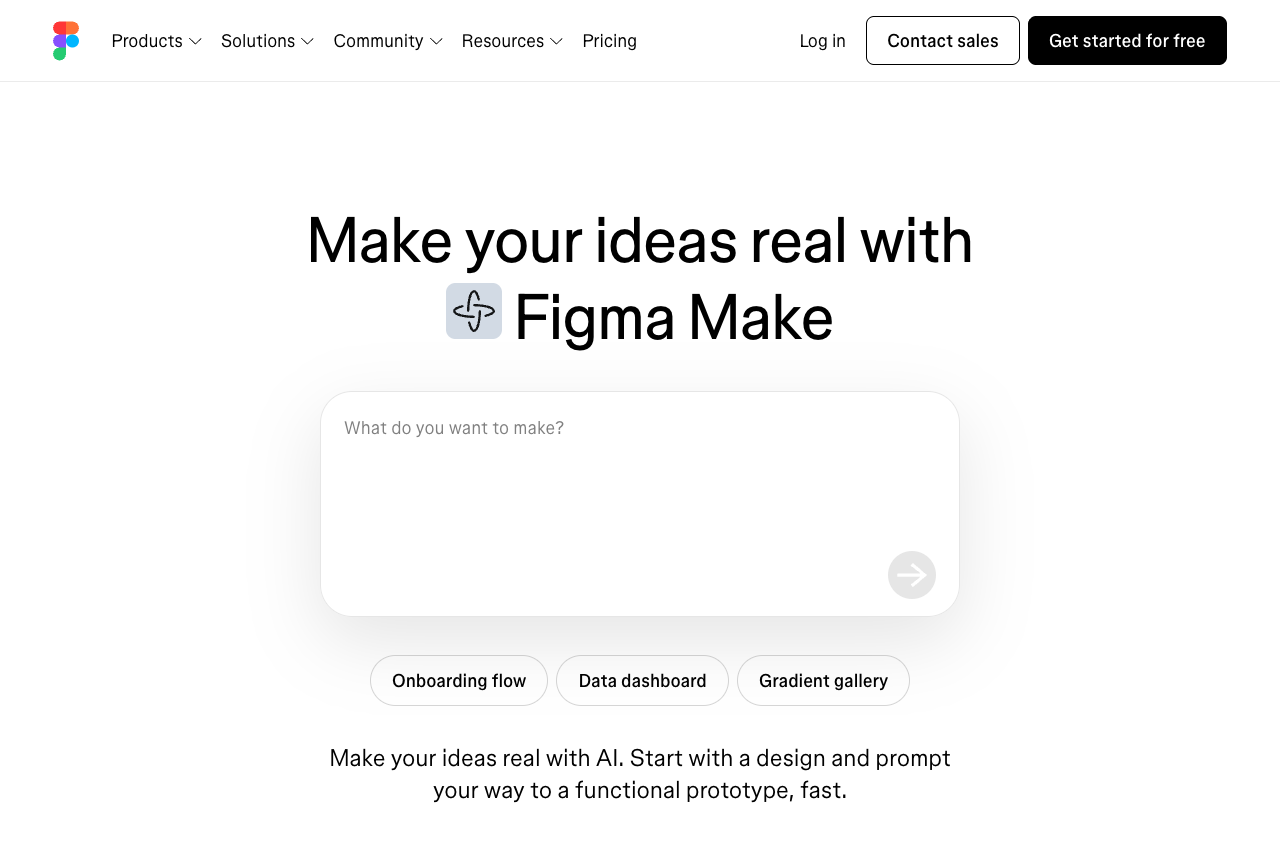
Figma Make is impressive for turning a prompt or a clean Figma frame into a working prototype fast, and it's a natural fit if you already live in Figma, but in 2026 it's held back by a metered-credit model and reliability issues that make it a prototyping tool rather than a path to production code. It's great for ideation and stakeholder demos. It's weak as a way to get shippable, codebase-aware code.
The honest case against it for serious building, all from real user sources:
- The credit model gets called an "iteration tax." One widely-shared Figma forum post argues the model penalizes the exact thing design needs, refinement, and reports spending heavily on credit top-ups just to debug a complex app, with most credits going to debugging rather than building features.
- Credits deplete in hours, often fixing the tool's own mistakes. On a heavily-viewed forum thread, users report burning through credits "in less than an hour trying to get it to fix issues it made," and the same thread complains that top-up credits cost noticeably more per credit than the base plan, making heavy iteration expensive.
- It makes unintended decisions and struggles with logic. In one hands-on review, a request to fix a radio button returned a select-menu conversion instead, and reviewers found it "buggy, clunky, and limited to basic use cases" with no integration to real code repositories for deployment.
If you live in Figma and want fast prototypes, Figma Make is a reasonable add-on. If you iterate heavily or need production code, the metered model works against you.
How do Figma Make's AI credits work, and why do they run out so fast?
Figma Make includes a monthly pool of AI credits on a Full seat (the Figma community thread on the allowance centers on a roughly 3,000-credit monthly pool), but in practice heavy users report burning a full month's allocation in hours because so many credits go to fixing the tool's own bugs rather than building features. Once you hit the cap, you buy top-ups, and the forum thread on the credit limits complains those top-ups are priced above the base rate.
The deeper problem is that design is iterative by nature, so any model that bills every attempt, including the failed ones, taxes the exact exploration design needs. That credit-burn dynamic is not unique to Figma Make, and we unpack the full pricing argument in the AI UI generator guide. For Figma Make specifically, the takeaway is simple: if you iterate heavily, the metered model fights you, and a flat plan removes that hesitation.
What's the difference between a Figma-to-code tool and an AI design agent?
A Figma-to-code tool assumes you've already designed in Figma and converts that finished frame to code, while an AI design agent generates and iterates on the UI from a prompt with no Figma frame in the loop at all. The distinction matters because it determines how many steps are in your workflow.
With a Figma-to-code plugin like Anima, Locofy, or Builder.io, the flow is: design in Figma, then export to React. You keep Figma, you keep the design file, and you add a conversion step. That's a good fit if your team designs in Figma as the source of truth and just wants a faster handoff. The honest caveat, which even pro-AI roundups admit, is that no tool produces 100% production-ready code from a converted frame, so expect cleanup.
With an AI design agent, there is no frame to convert. You describe the UI, the tool generates it as code, and you iterate on the code. This removes the Figma step entirely. The trade-off is you give up the precise pixel-level canvas control a designer might want. For a developer whose goal is shippable code, that control was never the point.
Can an AI design tool understand my existing codebase or design system?
Most can't, and for a Figma alternative this matters in a specific way: the whole point of grabbing a live component or cloning a page is that the design starts from your real product, not a blank slate. Superdesign leans into that. Invoked as a skill from your coding agent (Claude Code, Cursor, or any agent), it investigates your current UI first and creates a superdesign folder holding a design-system file plus HTML replicas of your real pages, so new designs build on what you already ship.
We cover the general "does it know my codebase" argument across every browser-only tool in the AI UI generator guide. Here the short version is that capturing reality (Component Grab, page clone) and reading your repo are two halves of the same idea: keep the design anchored to the actual product instead of a frame that drifts.
How does Superdesign work as a Figma alternative?
Superdesign is an AI design agent that generates production-ready UI from natural-language prompts on an infinite canvas and outputs real code, React, Tailwind, CSS, not static mockups. It works two ways: directly in the web app, or as a skill invoked from your coding agent so the agent offloads visual design and hands the result back as code. It is not a like-for-like Figma replacement for pure visual design work. It's the option for developers who want code out instead of frames in.
The skill is the most developer-native path. You install it once:
npm install -g @superdesign/cli@latest
superdesign login
npx skills add superdesigndev/superdesign-skill
Then you trigger it with /superdesign and a plain-English request like "redesign the homepage and add a book-a-demo section." From there it learns your project first (the design-system file plus page replicas), opens the canvas to explore several variations at once, designs whole multi-page flows that are clickable rather than static, and hands back to code cleanly: select a page, copy the design prompt into your coding agent, or ask the agent to fetch the design and plan the implementation. Design and build stay in one place. The founder's full walkthrough is below.
On pricing, Superdesign is a free tier plus a flat $20/month Pro plan, not metered credits. For iterative UI work, where you generate, look, adjust, and regenerate constantly, a flat plan means an experiment that doesn't pan out doesn't show up on your bill. If you want to try it before installing anything, the AI landing page generator runs the same loop in the browser: prompt a page, compare parallel directions, take the React and Tailwind. If you want the head-to-heads, see Superdesign vs v0, vs Lovable, and vs Bolt.
Are there free and open-source Figma alternatives?
Yes. The best free, open-source Figma alternative for a traditional canvas workflow is Penpot, which an independent XDA reviewer testing four open-source options found "stuck" thanks to muscle-memory parity with Figma and a built-in inspect and code panel. The same review notes Plasmic outputs production React. For greenfield prototyping, the free tiers of v0 and Google Stitch are genuinely useful for fast first drafts.
The caveat for developers is the same one running through this whole page: a free traditional design tool still leaves you implementing the design, and a free AI builder still generates from a blank slate with no codebase awareness. Free solves cost. It doesn't solve the handoff or the "does it know my project" problem. Pick the free option that matches the specific job you want to remove, not just the one with the most generous tier.
Is the code from AI design tools production-ready?
Partly. Even pro-AI roundups admit no tool produces 100% pixel-perfect, production-ready code, and reviewers regularly note AI making unintended changes, like returning a select menu when asked to fix a radio button. The right mental model is "strong starting point you build on," not "ship it untouched."
What moves the needle toward shippable is reuse. Tools that generate from a blank slate invent new components and tokens you then have to reconcile. Tools that read your existing design system, and reuse your real components, get you closest to code you can keep. That's the practical advantage of codebase-aware generation: less of the output is throwaway, because more of it already matches what you ship. For the broader picture of where this fits, see the 2026 AI design stack and what vibe design means.
When should you just stay on Figma?
Often, you should. If your core need is collaborative visual design, shared design files, mature prototyping, and a deep plugin ecosystem, Figma is still the strongest tool on the market and none of the alternatives replace it one-for-one. A design team handing off to engineering, a brand system maintained across dozens of files, a prototype that needs real interaction states for user testing: Figma wins those, clearly.
The case for switching is specific, not universal. Leave Figma if you're a developer who wants code out the other end, if seat-based pricing or metered AI credits frustrate you, or if you want design to live inside your IDE next to the code. If none of those describe you, the honest recommendation is to stay on Figma and maybe add a Figma-to-code plugin to speed up handoff. The goal here isn't to talk you off Figma. It's to match the tool to the job.
Which Figma alternative should you choose?
The right pick depends on where you start and what you want out the other end:
- You keep screenshotting live UI into Figma just to mock something up → Superdesign. Free Component Grab captures any live element into clean Tailwind, clone a whole page to extract its style, then iterate on the canvas and ship React. Flat $20/month for Pro.
- You must design in Figma first and just want it in code → Anima, Locofy, or Builder.io. They automate the handoff, with cleanup expected.
- You're starting a greenfield prototype from a prompt → v0 for React components, Bolt or Lovable for full-stack, Google Stitch for free mockup ideation (see our Google Stitch alternative guide for where its HTML/CSS output stops). Test the credit model on a throwaway project first.
- You want a free, open-source canvas to replace Figma's editor → Penpot. Closest muscle-memory match, with inspect and code panels.
- You need collaborative visual design, design files, and a plugin ecosystem → Stay on Figma. The alternatives don't replace that, and that's fine.
If you build in Cursor, Claude Code, or VS Code and you're tired of the design-then-rebuild loop, the fastest path is an agent that reads your repo and writes the UI for you. Browse the Superdesign prompt library to see the kinds of UI you can generate, or read why Cursor plus a design skill beats a separate canvas. You build the product. Let the agent handle the design.