What are Skills?

Skills are pre-built AI design actions available inside Superdesign. Each skill is optimized for a specific task — generating wireframes, creating landing pages, running user interviews, generating images, and more. You can also install community skills from the Skill Library or create your own.

How to Open the Skills Menu

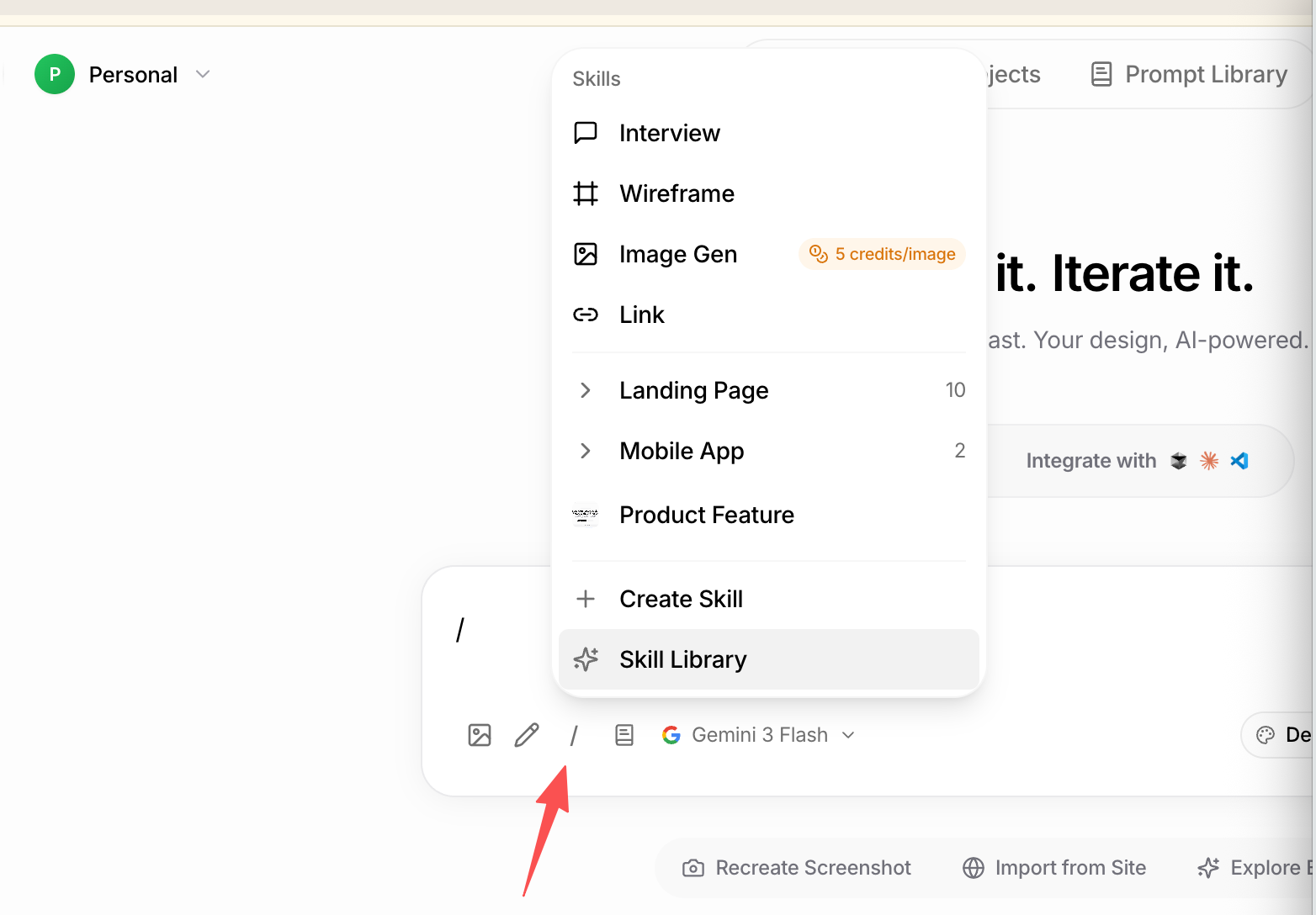
Type / in the prompt bar at the bottom of the canvas. The Skills menu appears instantly. Type / in the prompt bar to open the Skills menu
The / shortcut works from anywhere on the canvas — you don’t need to click into the prompt bar first.

Built-in Skills

The following skills come pre-installed with every Superdesign workspace:

Skill Library

The Skill Library is a collection of community-built and curated skills you can install and use instantly. Skills are organized by page type and use case, including: Landing Pages
  • SaaS homepage, startup landing page, agency site, portfolio
  • Pricing page, waitlist page, coming soon page
  • Product showcase, testimonials, feature highlight sections
Mobile App Screens
  • Onboarding flow, login / signup, dashboard
  • Profile page, settings screen, notifications
  • E-commerce product listing, cart, checkout
Product Features
  • Admin dashboard, analytics overview, data table
  • User settings panel, billing page, team management
  • Kanban board, calendar view, feed / activity stream
Marketing & Content
  • Blog post layout, newsletter, email template
  • Social media card, presentation slide, pitch deck slide
To open the Skill Library:
  1. Type / in the prompt bar
  2. Click Skill Library (✦ icon) at the bottom of the menu
  3. Browse by category or search by keyword
  4. Click any skill to preview it — you’ll see a thumbnail, description, and the prompt it uses
  5. Click Use to apply it instantly
Installed community skills appear in your Skills menu alongside your built-in ones.

Create Your Own Skill

Encode your own design workflow or team conventions as a reusable skill.
  1. Type / in the prompt bar
  2. Click + Create Skill
  3. Add a name, description, and prompt instructions
  4. Save — it appears in your Skills menu and can be shared with your team

Installing Skills via CLI

For developers using Superdesign inside a coding agent (Claude Code, Cursor, etc.), you can install the Superdesign Agent skill directly from your terminal and invoke it with a slash command. See the full setup guide: Superdesign Agent Skill tutorial Quick start:
Then use it in your coding agent:

Credits

Some skills consume credits per use. Image Gen costs 5 credits per image — shown inline next to the skill name in the menu. All other built-in skills are free.