> ## Documentation Index
> Fetch the complete documentation index at: https://superdesign.dev/docs/llms.txt
> Use this file to discover all available pages before exploring further.
# Brand Assets
> Define logos, fonts, and images so the Superdesign agent keeps designs on-brand and production-ready
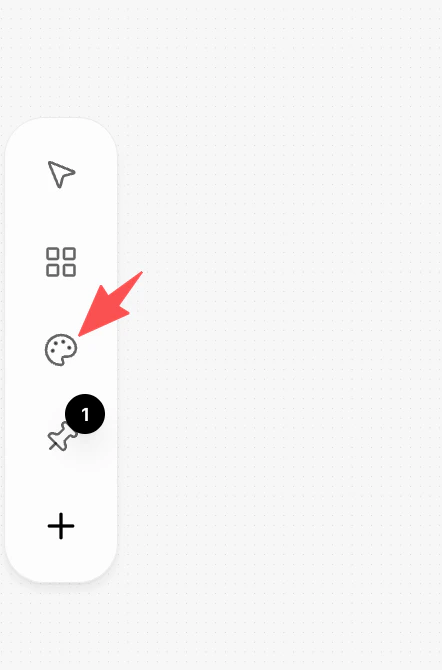
Brand Assets define the visual foundation the Superdesign agent uses when designing. By uploading your logos, fonts, and images, you ensure every generated design stays consistent, on-brand, and production-ready.
 ## Logo
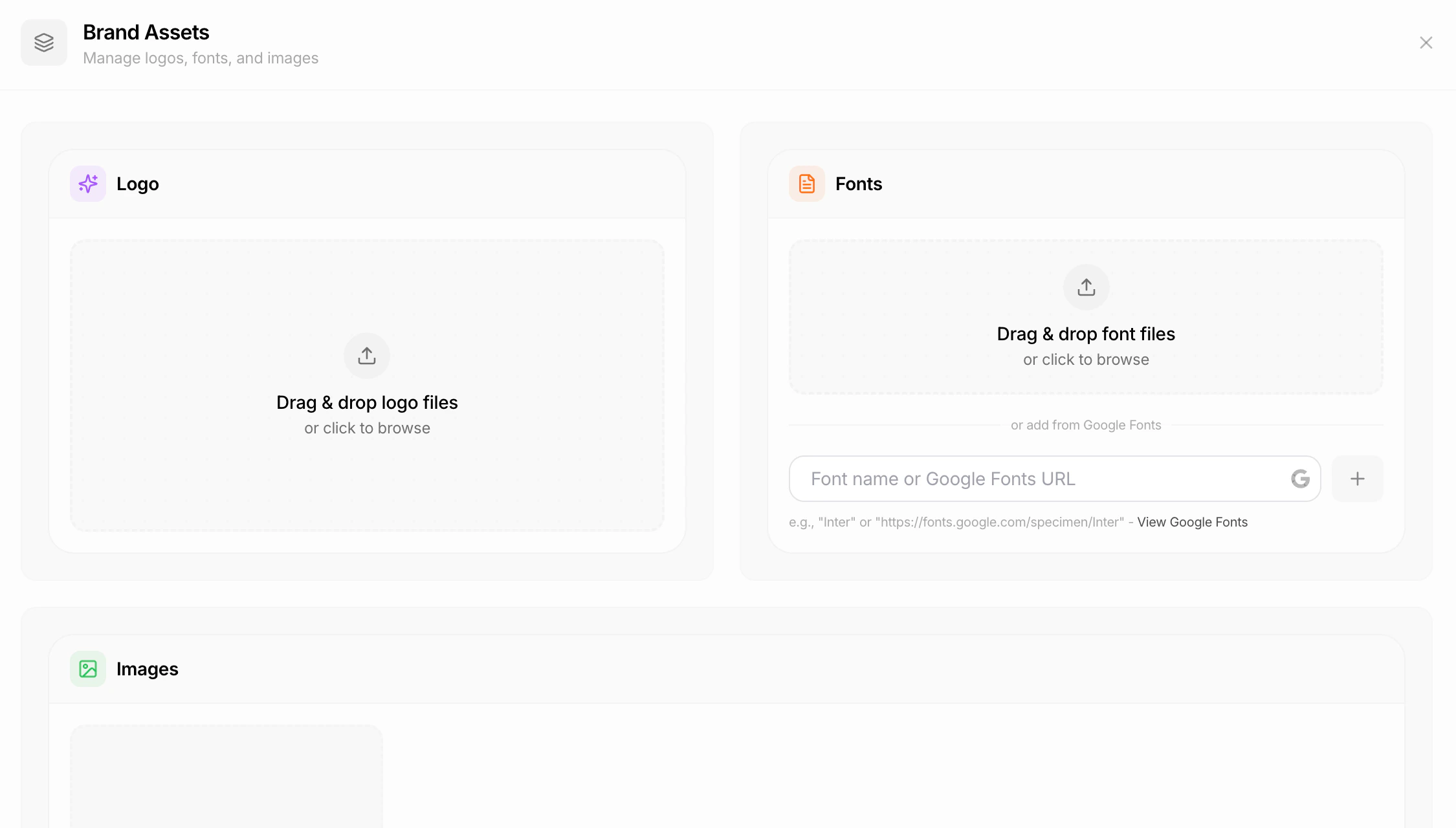
Upload your brand logo to anchor visual identity across all designs.
**Supported formats:** SVG, PNG, JPG
* Used automatically in headers, navigation, and branded sections
* Influences spacing, scale, and layout decisions
* **Recommended:** Upload an SVG for best quality and responsiveness.
## Fonts
Define your brand typography so the agent matches your real product styling.
You can add fonts in two ways:
* Upload font files (e.g. `.ttf`, `.otf`)
* Import from Google Fonts by name or URL
Once added:
* Fonts are applied consistently across headings, body text, and UI elements
* The agent respects font hierarchy and avoids random font substitutions
## Images
Images uploaded here are design-ready assets that the agent can place directly into generated designs.
**Examples include:**
* Hero images
* Product screenshots
* Illustrations and backgrounds
Images can be used in two modes:
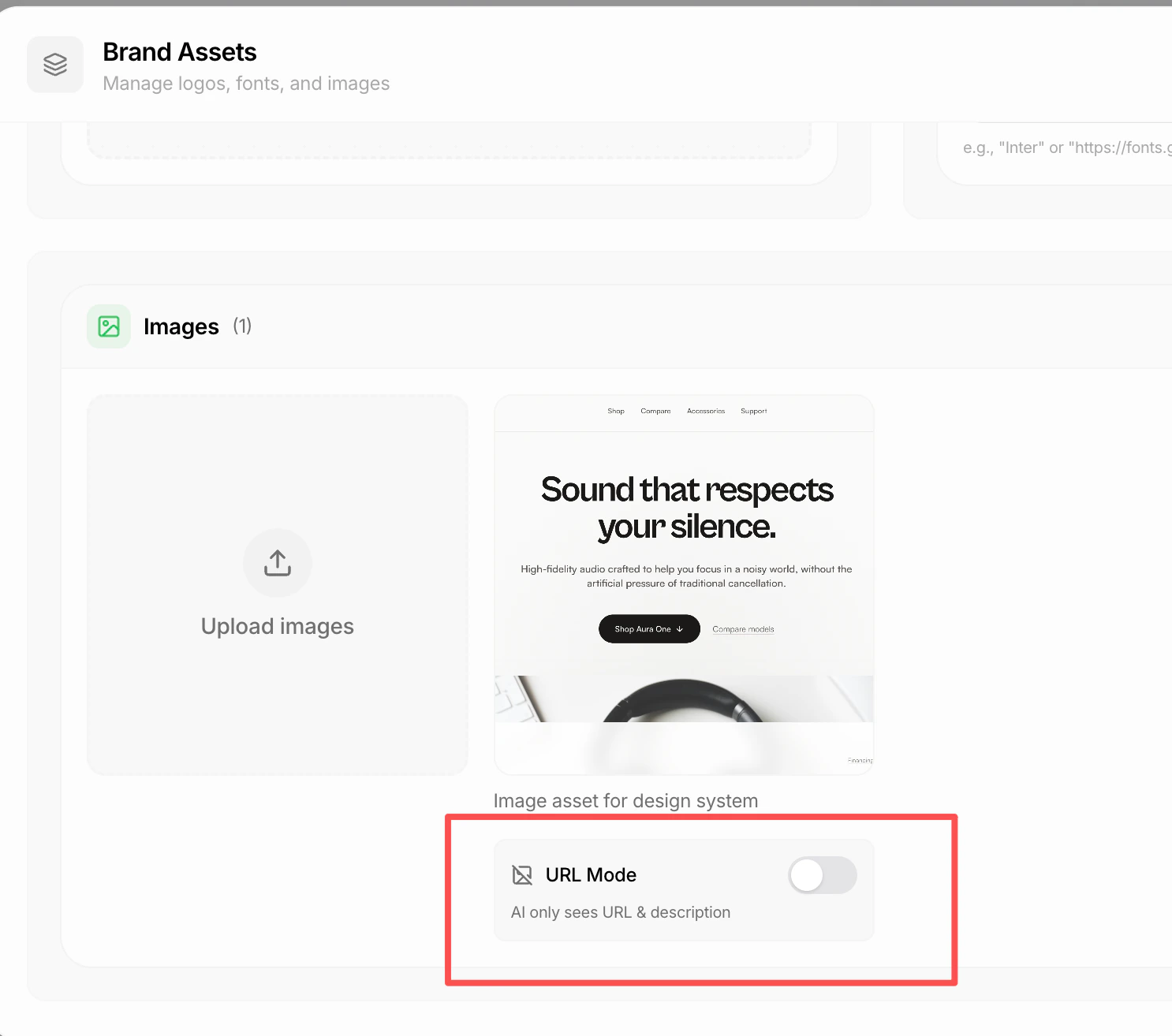
### URL Mode (Default)
The agent uses the image only as an image.
* Images may be placed directly into layouts
* The image is not analyzed or interpreted
* Lower token usage
Use this when you want the image included but don't need the agent to reason about its content.
## Logo
Upload your brand logo to anchor visual identity across all designs.
**Supported formats:** SVG, PNG, JPG
* Used automatically in headers, navigation, and branded sections
* Influences spacing, scale, and layout decisions
* **Recommended:** Upload an SVG for best quality and responsiveness.
## Fonts
Define your brand typography so the agent matches your real product styling.
You can add fonts in two ways:
* Upload font files (e.g. `.ttf`, `.otf`)
* Import from Google Fonts by name or URL
Once added:
* Fonts are applied consistently across headings, body text, and UI elements
* The agent respects font hierarchy and avoids random font substitutions
## Images
Images uploaded here are design-ready assets that the agent can place directly into generated designs.
**Examples include:**
* Hero images
* Product screenshots
* Illustrations and backgrounds
Images can be used in two modes:
### URL Mode (Default)
The agent uses the image only as an image.
* Images may be placed directly into layouts
* The image is not analyzed or interpreted
* Lower token usage
Use this when you want the image included but don't need the agent to reason about its content.
 ### Vision Mode
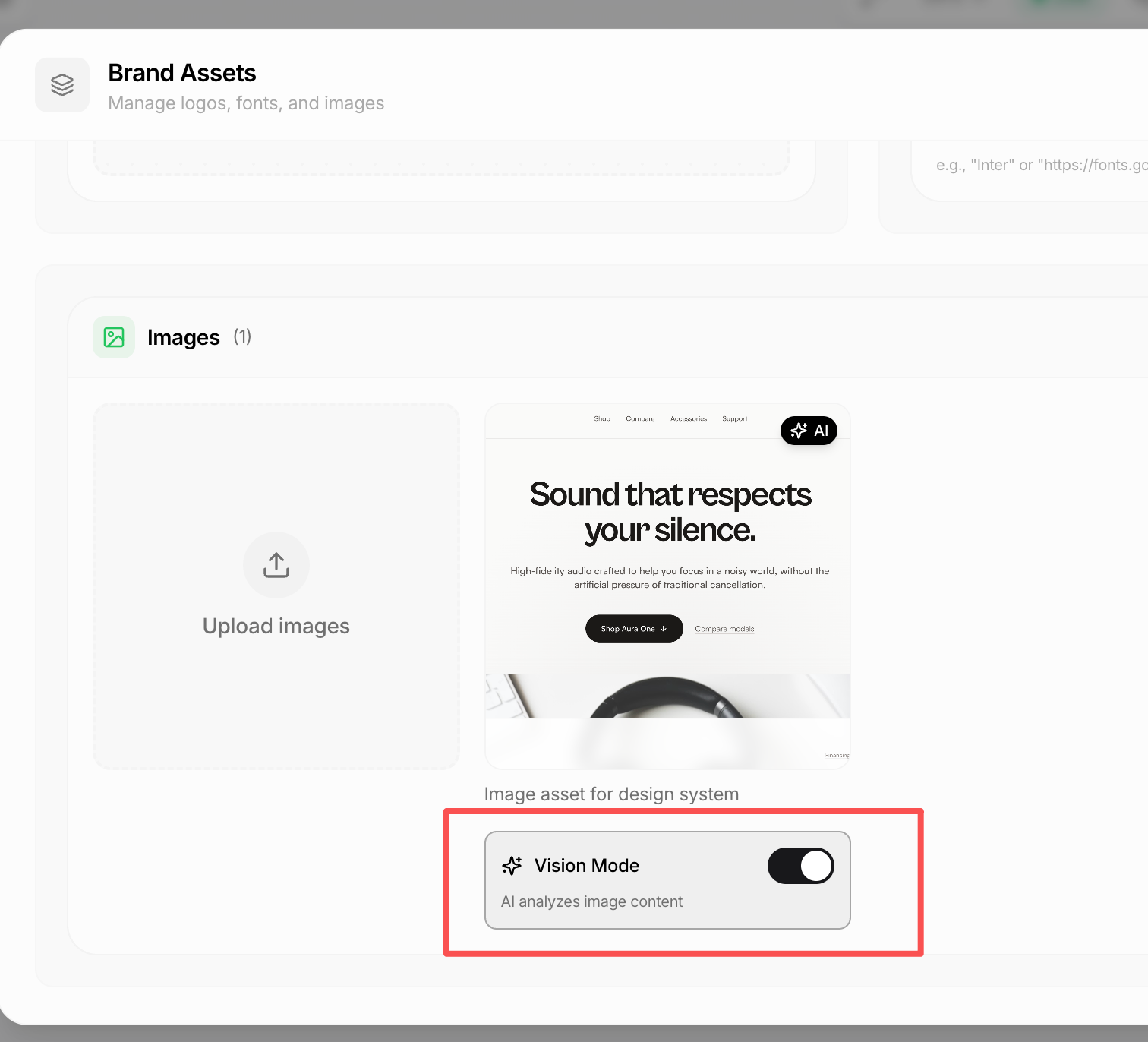
The agent uses the image both as an image and as a reference.
The AI analyzes the image to understand:
* Visual style and composition
* Color palette and mood
* Content and design intent
* Enables more visually aligned and intentional designs
* Uses more tokens due to image analysis
### Vision Mode
The agent uses the image both as an image and as a reference.
The AI analyzes the image to understand:
* Visual style and composition
* Color palette and mood
* Content and design intent
* Enables more visually aligned and intentional designs
* Uses more tokens due to image analysis
 Use this when the image represents a strong brand direction or visual reference.
## Why Brand Assets Matter
* Ensures consistency across pages, flows, and iterations
* Reduces prompt complexity—brand context is always available
* Produces designs that feel intentional, not generic
Set this up once, and Superdesign will design on-brand by default.
Use this when the image represents a strong brand direction or visual reference.
## Why Brand Assets Matter
* Ensures consistency across pages, flows, and iterations
* Reduces prompt complexity—brand context is always available
* Produces designs that feel intentional, not generic
Set this up once, and Superdesign will design on-brand by default.